

Let’s Get Started!
Follow these steps to set up vScope in your IT environment and get the most out of your trial.
1. Confirm your trial license
Ensure that the Trial has been accepted in the license portal by you or someone at your company. This action generates your license key.
Log in to manage licenses2. Configure a server
Configure a server with the following recommended specifications for vScope installation:
- Windows
- 2 CPU Cores
- 16GB RAM
Server specifications may vary depending on the size of the infrastructure.
Learn More3. Integrate platforms to extract data
To create your desired IT asset repository in vScope, you'll need to add and connect various credentials with the necessary permissions. Start by selecting data sources you want to add.
Popular data sources:
- Windows (Windows OS)
- Active Directory (e.g Users & Groups)
- Azure (eg. Defender, EntraId, Endpoint Central)
- Microsoft SQL Server (databases, systems, jobs)
- SSH (Linux/Ubuntu OS)
- VMware (eg. virtual machines, hosts)
4. A quick Installation
Installing and configuring vScope takes approximately 30–60 minutes and is done together with our Customer Success team.
Installing vScope (Windows)5. Recommended settings…
We highly recommend that you configure the following settings to maximize your vScope experience.
Done! 🎉 You’re ready to get started
With vScope's IT asset repository in place, you will benefit from total visibility of your IT infrastructure, supporting your company perform at its best.
Additional resources
Read More
All posts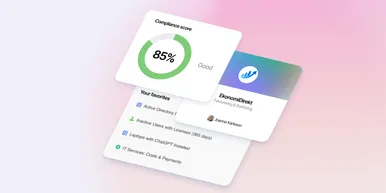
Less Guessing, More Knowing — Wherever It's Needed
We're releasing several new features that help you get better visibility and collaboration in, and outside of, your IT organization. Asset Health in Properties, Share to Teams, and external report recipients are all really about the same problem: the right data, to the right person, at the right time.

New in vScope: Track Microsoft 365 Copilot Usage Across Your Organization
Know exactly how Copilot is used across your organization. By who, and where. vScope now has extended its coverage of ready-made reports about Copilot adoption, license utilization, and usage patterns. Immediately visible, and easy to share.
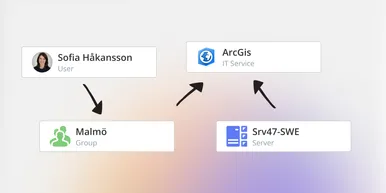
See How Your IT Environment Actually Fits Together
vScope has always mapped the relationships in your IT environment automatically. Now you can explore them visually. The Relationship Map is a new view in Properties and Governance – always current, no manual work required.