


Introducing Network Port Mapping in vScope: Finally See What’s Connected – and Where
One of the most requested features is now here. With Network Port Mapping for SNMP, IT teams can instantly see how devices are connected across the network, no more remoting into switches, outdated documentation, or guesswork. This update helps you troubleshoot faster, improve documentation, and strengthen overall network security.
 Anton Berghult •
 One of the most common requests from vScope users has been:
“Can’t vScope just show me what’s connected to each switch port?”
… and now it can.
vScope’s new Network Port Mapping feature gives you a clear, continuously updated picture of how devices are connected across your network.
It’s visibility that leads directly to safer, more proactive IT operations.
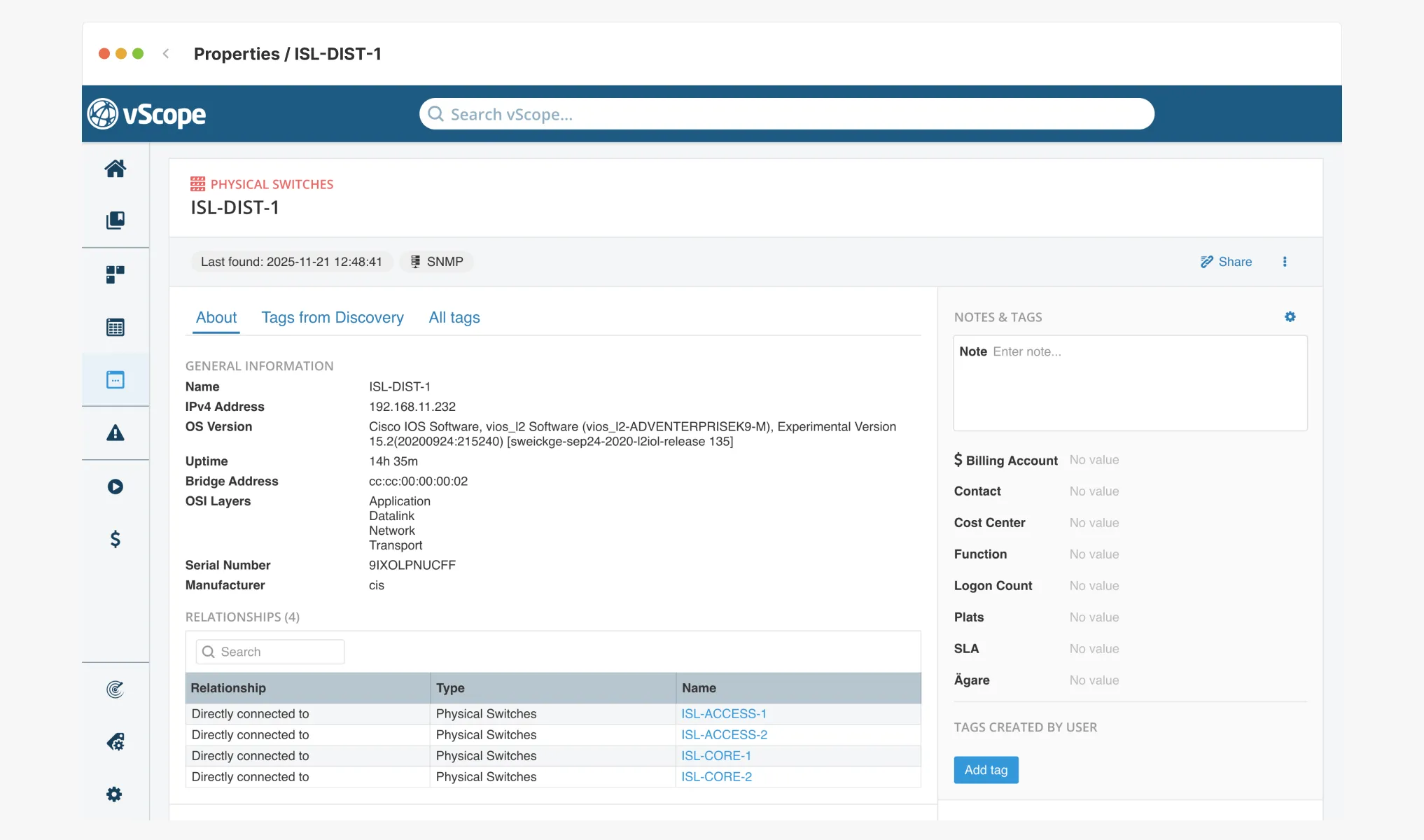
Why network visibility is a challenge
If you’ve ever tried to answer questions like:
- Which device is connected to port 13?
- Do we have any unmanaged switches or hubs on the network?
- How are switches and devices connected across the environment?
… you know it usually requires a mix of:
- SSH remoting into switches
- Running CLI commands
- Copy/pasting MAC and ARP tables
- Searching spreadsheets and documentation
- Asking colleagues – or walking down a hallway to physically inspect the port
That’s not the way we want to operate, is it?
Network Port Mapping solves this by collecting and mapping data directly from your switches through SNMP with data collected from other data sources. One place. Always up to date. No manual work.
What you get with vScope Network Port Mapping
vScope automatically retrieves and connects information about how switches and devices are mapped.
This lets you:
See which assets are connected to each switch port
Just open one of the bundled tables and view:
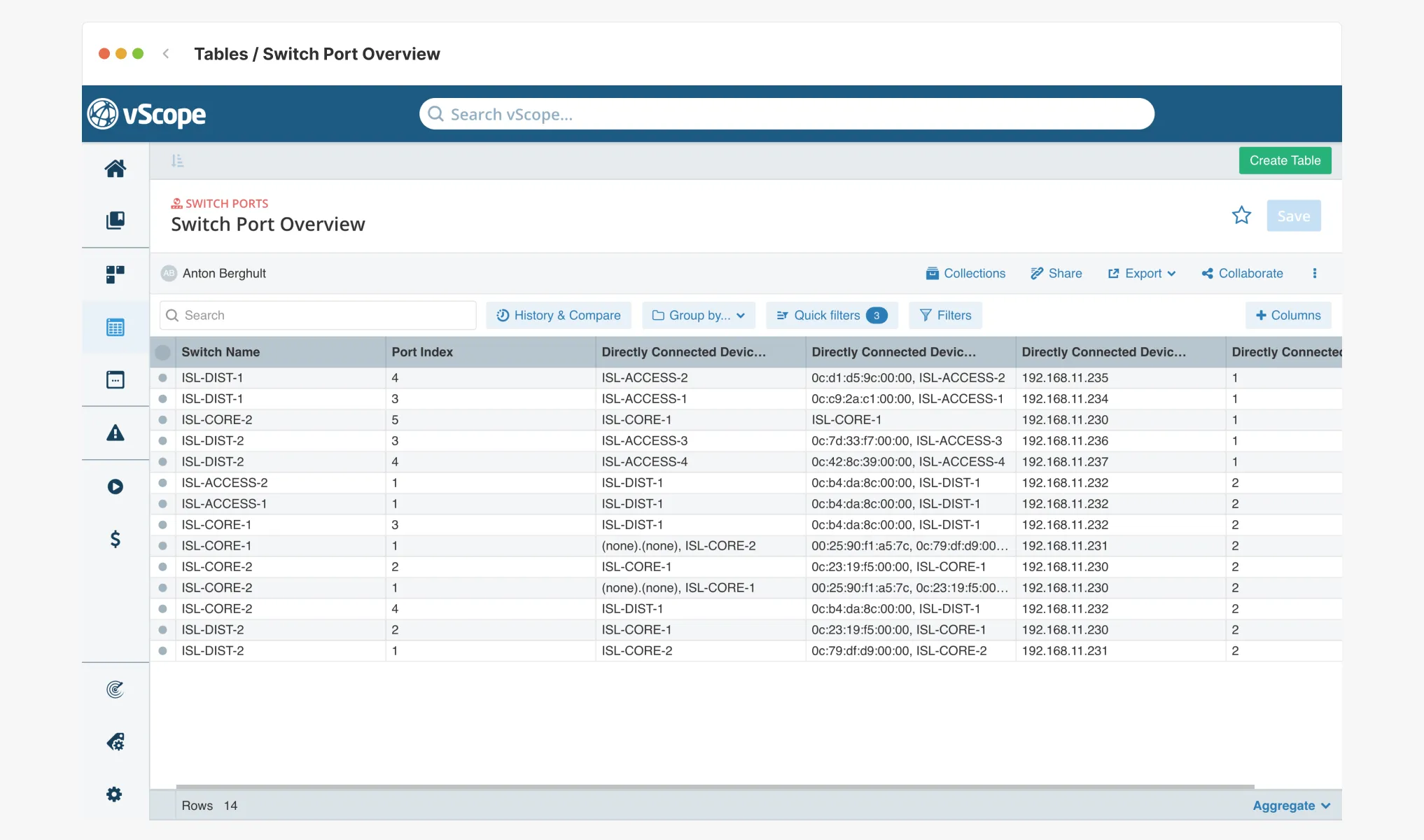
You can also create your own tags from relationships, so that you can highlight the information that is relevant to your use case.
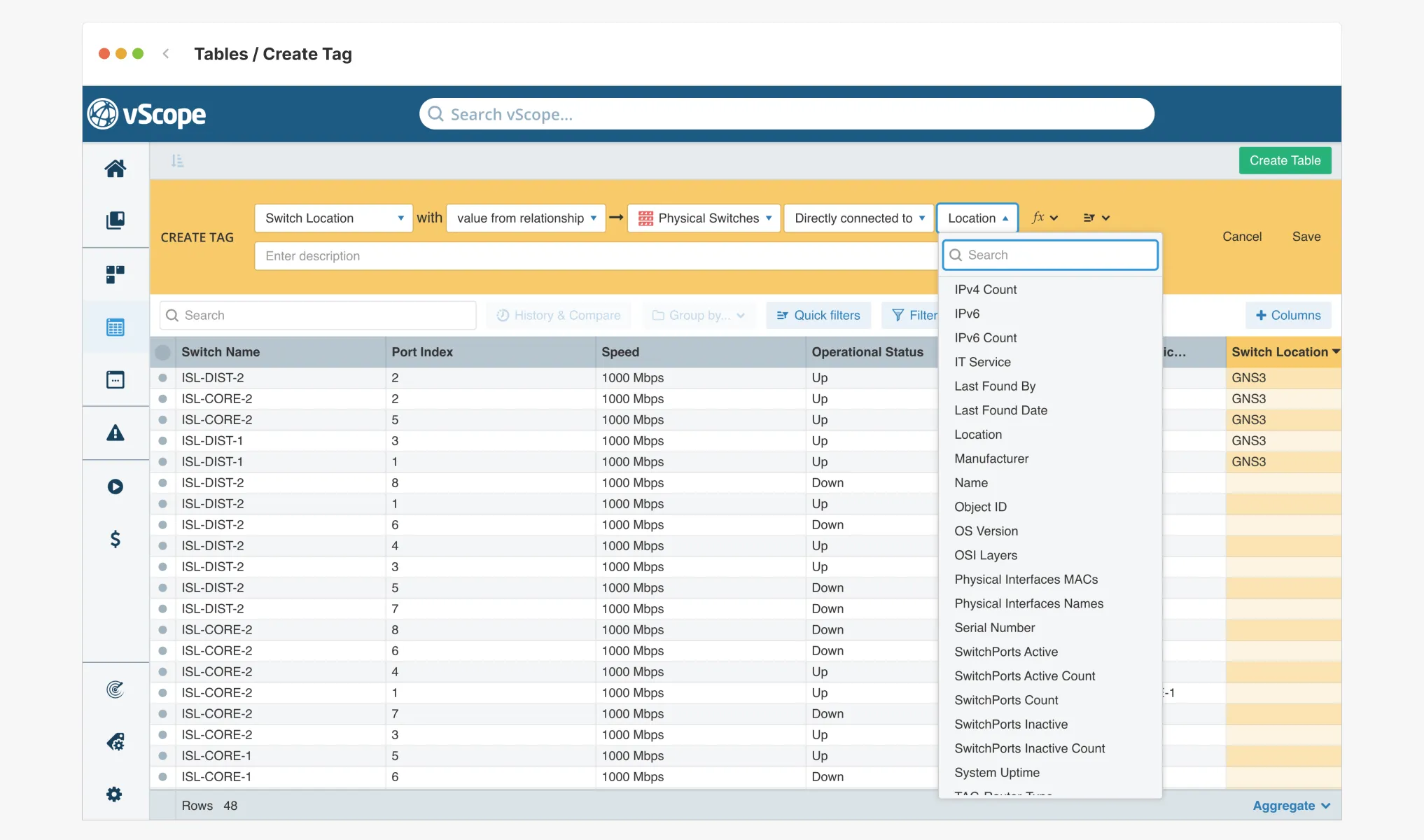
Switch-centric or device-centric views
Prefer to explore from the switch? Great.
Prefer to start from the device? Also great.
Both perspectives are supported in vScope.
Clean documentation, without maintaining Visio diagrams
Everything is discovered automatically.
Everything stays updated.
Everything is searchable.
Faster troubleshooting
When an incident happens, you immediately know:
- Where the device is connected
- What else is present on the port
- Whether the connection is expected or suspicious
- How it relates to nearby infrastructure
A safer, more controlled network
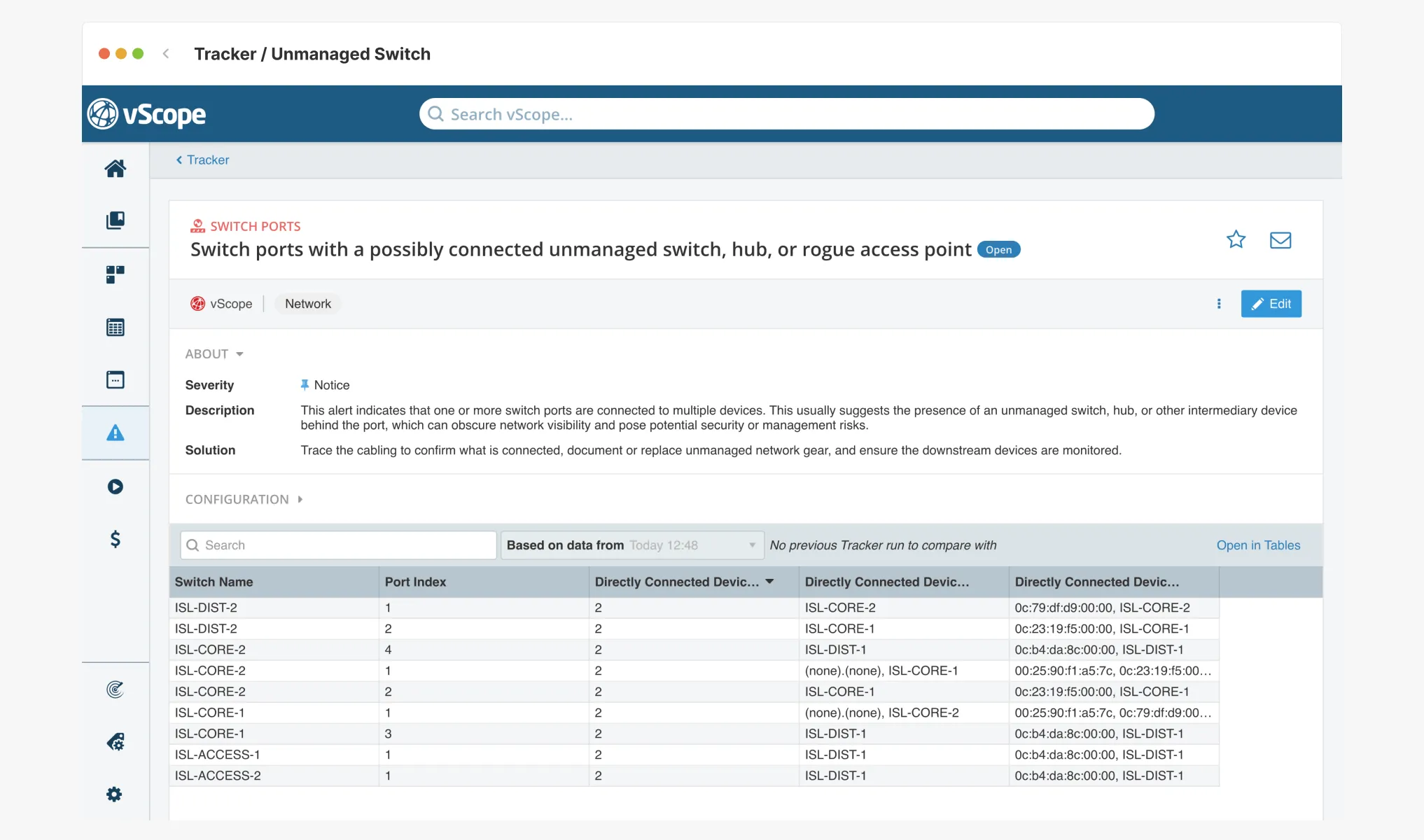
Unknown devices, rogue switches, accidental changes, and network blind spots become visible instantly.
That’s a major improvement for:
- Security
- Audits
- Lifecycle management
- Delegation and ownership
Requirements: what you need to get started
Network Port Mapping is included in every vScope installation.
You only need:
- A subscription to vScope’s Network Module
- SNMP enabled on your switches (CDP/LLDP recommended)
- Correct SNMP credentials configured in vScope
Full requirements and setup guide:
https://support.vscope.net/datasources/snmp/
Once configured, vScope automatically correlates MAC, IP, and port information and displays it for both switches and devices.
Example use cases (real customer scenarios)
Identify unknown or suspicious devices
See exactly where unexpected or unmanaged devices are connected in the network.
Improve documentation without effort
Your actual network map stays up to date automatically – no Visio, no manual work.
Identify optimizations and misconfigurations
Quickly spot ports running at the wrong speed, devices missing alias information, and other configuration issues that affect performance or clarity.
Increase resilience in your organization
Network knowledge becomes shared and accessible instead of locked inside one person’s head.
Try it today
If your switches are already discovered via SNMP, the insights are available in vScope right now.
Need help with SNMP or want a walkthrough of your first network port map?
We’re here to help, just reach out.
Related blog posts
All posts
New datasource: Proxmox
vScope now discovers Proxmox VE for hosts, VMs, containers, networks, and capacity. This will help you bring full visibility into hosts, VMs, containers, capacity and other Proxmox assets.
 Anton Berghult February 24, 2026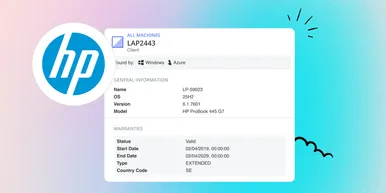
HP Warranty: Deeper lifecycle visibility
Fetch and sync warranty data from HP, directly to vScope for improved planning and control of your assets' life cycle status. In this post I will briefly go through the latest feature in vScope, and how this strengthen the value of your asset repository.
Anton Berghult February 23, 2026 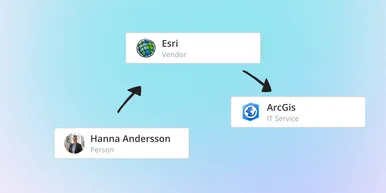
IT Services Become Governance – Put Your Assets in Full Business Context
We have renamed IT Services (Service Mapping) to Governance. However, this update is not only about renaming; it expands the feature from 'IT service-only' modeling to supporting any business context – including applications, vendors, ownership, policies, and more. Let's go through what this means for you.
Anton Berghult February 20, 2026 
Standardize IT Billing Faster with Built-In Price List Templates
Reduce manual pricing work and get more accurate IT billing in place faster using reusable, best-practice price list templates. Here is the latest feature of vScope Billing
Anton Berghult January 26, 2026 
New in vScope: A More Personal Experience with Interest Profiles
We’re introducing Interest Profiles in vScope, a new way to make vScope more relevant and helpful for every user. Get a home screen and library experience tailored to your interests, responsibilities, and daily work.
Anton Berghult November 20, 2025 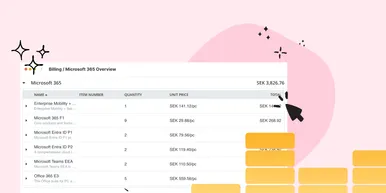
New Price List for Easier Control of Microsoft 365 Costs
With vScope’s new price list for Microsoft 365, it’s easier than ever to understand, monitor, and optimize your license costs. The price list is automatically applied to your asset inventory once vScope is connected to your Microsoft 365 environment.
Anton Berghult October 22, 2025 
News in vScope: Smarter Filters, a Fresh Tables Experience & 200+ New Content Items
Discover the all-new Filters, redesigned Tables view, and powerful new content for Microsoft 365, Active Directory, and SQL databases, here is the latest update of vScope.
 vScope August 25, 2025
 vScope 3.32
Explore all the updates and improvements in vScope 3.32, including new Microsoft 365 management, Jira integration, AWS asset support, and smarter lifecycle management with warranty collection.
vScope May 26, 2025 vScope 3.31
History & Changes have been introduced in Tracker, making it easier to track and understand how assets evolve over time. You can now select from recent Tracker runs, and vScope will automatically highlight changes from the previous Tracker run (i.e. when Tracker cases were last evaluated).
Anton Berghult February 11, 2025